Microsoft Teams phishing: when “IT support” messages you from outside
The message does not arrive by email but directly in Microsoft Teams. Sender: “IT Help Desk”. Shortly before, the inbox was flooded with hundreds of pointless newsletter sign-ups; now the supposed support team offers to help – by chat, then by call, finally by remote access. A few minutes later, an attacker is in control of the computer.
Security researchers and incident response teams have been seeing this pattern more and more often since 2024. It works because Teams is regarded as a trusted, internal channel within the company – and because, by default, Teams allows chats with users from any external organisation.
How the attack works
1. Preparation: the flooded inbox
The attack often starts with a wave of spam: the target’s inbox is swamped with subscription confirmations and newsletters. The flood is not an end in itself – it provides the pretext for the next step.
2. First contact: an external “IT support” account in Teams
In a Microsoft 365 tenant of their own, the attacker creates an account with a display name such as “Help Desk”, “IT Support” or “Service Desk” – sometimes adding the victim’s company name or “(Internal)”. Using Teams external access, they message the target directly and offer to fix the spam problem.
3. Escalation: call and remote access
The chat quickly turns into a Teams call. The fake support agent asks the employee to start a remote support session – usually with Microsoft Quick Assist, which is already installed on Windows machines, or with another legitimate remote management tool. Because the employee grants access themselves, classic security controls rarely raise an alarm.
4. Takeover: malware, credentials, lateral movement
With remote control established, the attacker installs malware or their own remote access, harvests credentials through fake sign-in pages and starts moving through the network. In documented cases, this chain ended in data theft and ransomware – including by affiliates of the Black Basta (from autumn 2024) and Chaos (2026) groups.
The attack needs no vulnerability. It exploits a default setting and the trust employees place in their own IT support.
Why the threat is growing
According to Palo Alto Networks Unit 42, collaboration tools such as Teams already accounted for 42 % of all phishing alerts on its platform in the first four months of 2026 – up from 30 % in the four months before. In March 2026, Microsoft itself analysed a case in which a supposed support call via Teams and a Quick Assist session led to the compromise of a corporate device.
Microsoft has responded with warnings: Teams labels first contact from outside as external, has warned about senders impersonating well-known brands since late 2024, and since late 2025 also about domains that closely resemble the organisation’s own domain. These warnings help – but they are no substitute for properly configured external access and well-trained employees.
Typical warning signs
- “External” label: your own IT support never writes from another organisation.
- Unexpected contact after a spam wave: anyone who is being flooded with emails does not get help offered out of the blue via Teams.
- Suspicious display names: “Help Desk”, “IT Support”, “Security Team”, often with the company name or “(Internal)” added.
- Requests for remote access or sign-in: start Quick Assist, install a tool, enter credentials on a web page.
- Time pressure: an alleged account lockout, an “urgent security update”, a problem that supposedly has to be fixed right now.
What to do if it happens
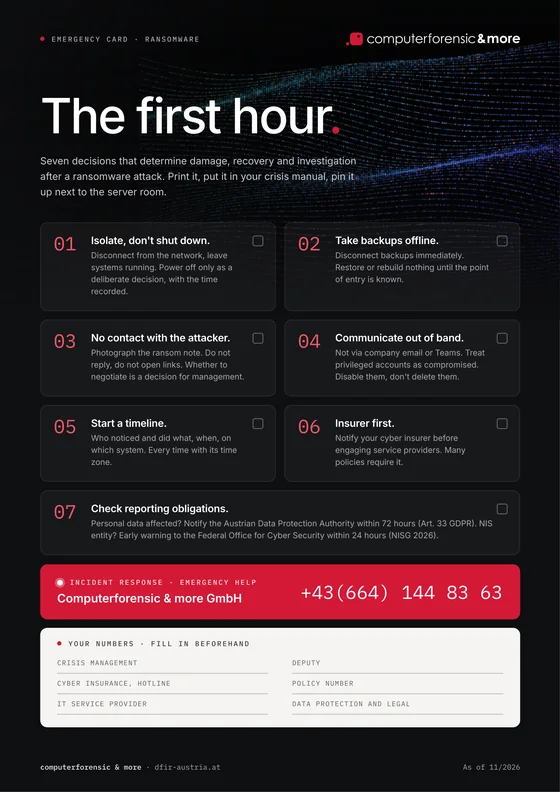
- End the remote session immediately and disconnect the computer from the network – but leave it switched on so that volatile traces are preserved.
- Do not delete the chat or call history. It is evidence and shows when and how the attacker operated.
- Alert IT security through a known channel – not via the same Teams chat.
- Lock the account and revoke sessions: reset the password and invalidate active sign-ins and tokens in Microsoft Entra.
- Have the evidence secured forensically: Teams and audit logs in Microsoft 365, sign-in logs in Entra, traces of the remote session, browser history and newly installed software on the affected computer.
How we investigate such incidents in Microsoft 365 and document them in a court-admissible way is described under Microsoft 365 forensics. If an attack is under way right now, our cyber attack emergency help is available around the clock.
Prevention: what organisations should configure now
- Restrict external access: instead of “allow all external domains”, only allow the domains of partners and customers you actually work with in Teams.
- Block chats with unmanaged accounts: personal Teams accounts and trial tenants rarely have a legitimate place in day-to-day business.
- Control remote support tools: remove or block Quick Assist and other remote tools wherever they are not needed, and limit your own support to one defined, documented tool.
- A clear rule for support requests: IT support never contacts employees unprompted from outside. When in doubt, call back on the known internal number.
- Train employees: phishing is no longer just an email issue. The pattern “spam wave, Teams message, call, remote access” belongs in every awareness training.
- Monitor the logs: new external chats with suspicious display names, remote support sessions and unusual sign-ins should stand out in your monitoring.
Conclusion
Teams phishing succeeds because it feels like internal communication. The most effective countermeasures are unspectacular: limit external access to known partners, control remote support and give every employee one simple rule – genuine IT support does not come from outside.
And if it has already happened: do not delete the chat, disconnect the computer but leave it running, and bring in specialists. Our incident response team is available 24/7 on +43 1 226 40 33 or via our contact form.
Sources: Microsoft Security Blog (March 2026), Palo Alto Networks Unit 42 (2026), Sophos and BleepingComputer (2024–2026), Microsoft 365 Message Center (MC910976, MC1187679)